Shopping links in this guide go to official brand pages and are not affiliate links. We do not earn a commission from them. Our disclosure
Memory and storage answer different questions. Memory supports the work you have open; storage holds applications and files after you shut down. A large drive does not compensate for insufficient memory, and extra memory does not create room for a photo archive. The right configuration starts with your current workload and a realistic plan for the years you expect to keep the computer. These recommendations are editorial starting points, not benchmark results or guarantees.
For a new general-purpose laptop, consider 16 GB of memory a useful starting point and assess storage from your actual file collection. Move up when applications justify it; prioritize hard-to-upgrade components over capacity you can add externally.
Watch your current workload
Open the applications you normally use together: a call, browser tabs, a document, and whatever runs in the background. Check operating system memory tools during that routine. Repeated pressure and slow switching are more useful signals than an isolated number immediately after startup. A machine can be slow for other reasons, so do not diagnose every pause as insufficient RAM.
Use this observation to choose a category. Light writing and browsing need less headroom than several development tools, large image files, or virtual machines. Check recommended configurations rather than only minimums. For a shared family laptop, consider the most demanding regular user, not an average hiding one person's needs.
Choose memory before an expensive processor upgrade
Our practical starting point is 16 GB for mixed everyday work, with 32 GB worth considering for heavier multitasking or applications whose documentation recommends it. Professional projects can need more still. These are shopping heuristics; project size and complexity should override a generic guide.
Before paying for a faster processor tier, find out whether memory can be upgraded after purchase. Some laptops have fixed memory; others provide accessible slots. Check exact service documentation. If the machine must last through a growing workload, suitable memory may be more useful than a small processor upgrade. Do not assume all laptops in a product family offer the same upgrade path.
Calculate storage from what you keep
Start with space used on your current computer. Separate applications, active files, downloads, games, and archived media. Add projects you reasonably expect to keep locally, then allow breathing room for updates and temporary files. A cloud account does not mean every file consumes no local space; offline copies and caches still need room.
For a document-focused buyer, 512 GB can be a reasonable planning point. Large games, video footage, and photo catalogs change that quickly. Estimate from real folder sizes instead of guessing from the number of files. Count temporary exports too. Usable space differs from marketed capacity, so avoid planning to fill the drive to its last listed gigabyte.
Decide what can live elsewhere
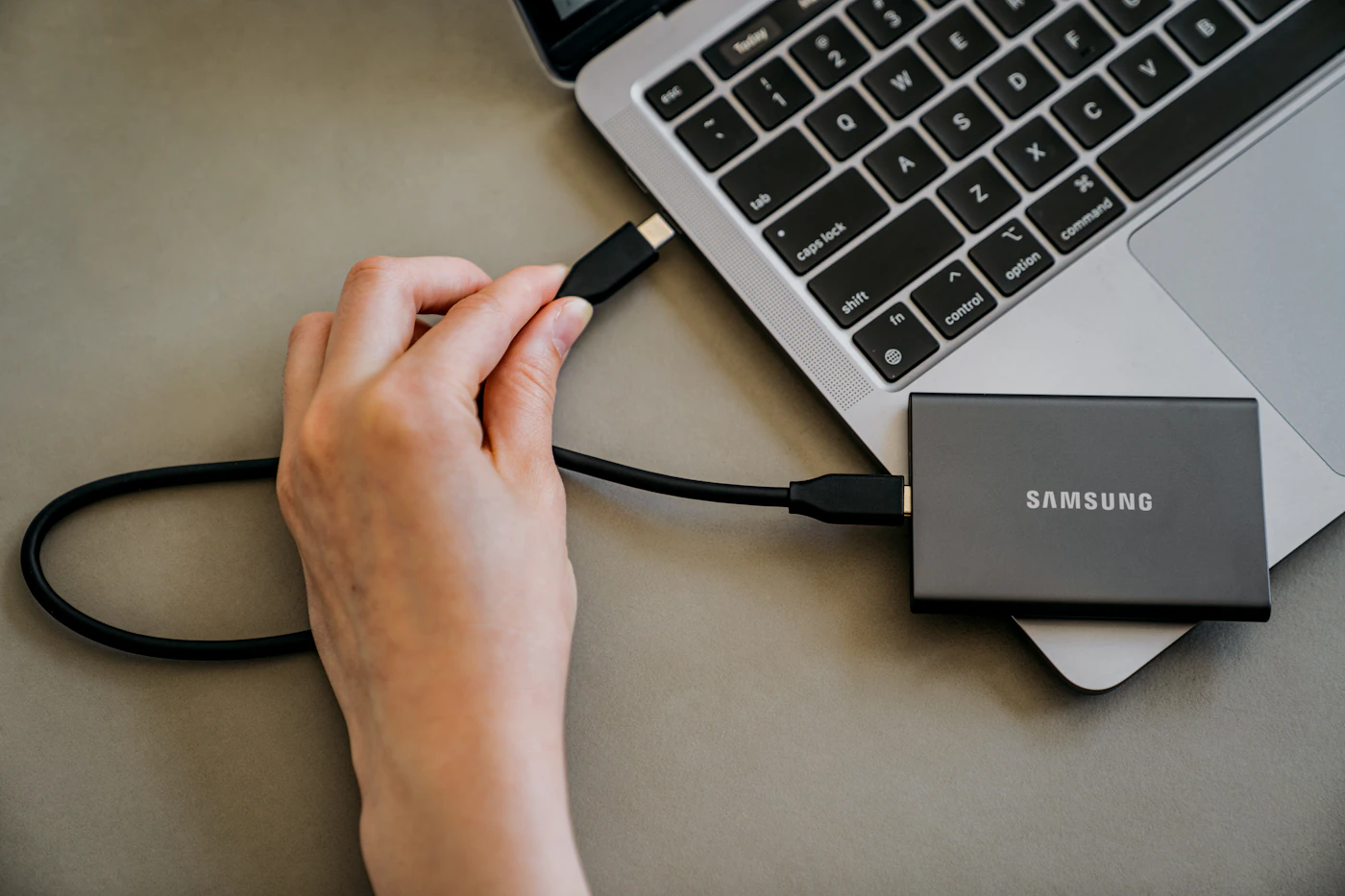
An external SSD can hold an archive or move projects between computers, but adds another object, cable, and backup responsibility. It is less convenient for a laptop used on your lap or repeatedly packed away. Cloud storage can simplify access across devices, though connection quality, subscription cost, and offline availability matter.
Separate expansion from backup. Moving your only copy onto an external drive does not make it safer. Keep an independent copy of irreplaceable files, and test recovery. Compare the cost of a larger internal drive with the complete external arrangement. If savings depend on always carrying a drive you are likely to forget, the cheaper configuration may be wrong for you.
A closer look at the tradeoffs
| Option | Best fit | Tradeoff |
|---|---|---|
| 16 GB with moderate storage | Documents and ordinary multitasking | Less headroom for project growth |
| 32 GB with larger storage | Heavier creative or development workflows | Higher upfront cost |
| Moderate storage plus external SSD | Archives used mainly at a desk | Another device and backup routine |
Before you buy
- Measure current storage use.
- Check application recommendations.
- Verify upgradeability by model.
- Budget for an independent backup.
Confirm the exact model, compatibility, current price, and return policy at the official destination before ordering.
Explore laptops through Microsoft ↗Common questions
Is the Windows minimum memory enough to shop by?
No. Microsoft describes published figures as installation minimums and notes applications may require more. Buy for the software and multitasking you actually use. A minimum-compatible configuration can still be a poor match for your work, particularly when several applications remain open together.
Will more RAM make every task faster?
No. It helps when memory capacity constrains the workload. Network speed, storage performance, software behavior, and processor demands can be limiting factors instead. Once you have enough memory, additional capacity may sit unused. Observe the problem before paying for a larger configuration.
Sources & further reading
Manufacturer documentation consulted October 10, 2026. Buying judgments are our editorial interpretation; published specifications do not establish real-world performance.
See something that needs updating? Send a correction.